


PDF Reader Lite - Fast Viewer
4.013.00 Reviews
App Specs
- Version
- 1.0.1
- Updated On
- License
- Free
- Downloads
- 100,000+
- Developer
- Omareyah Team
- Categories
- Tools
- Platform
- Android
Screenshots
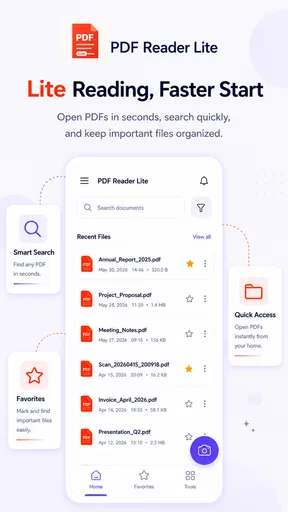
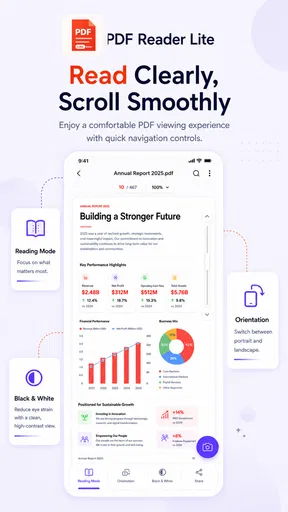
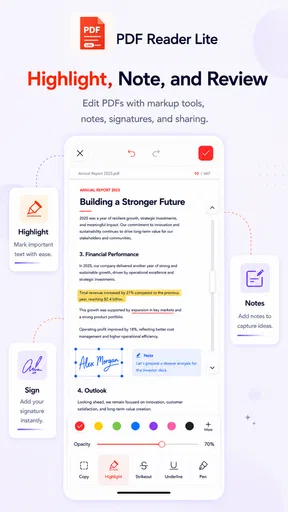
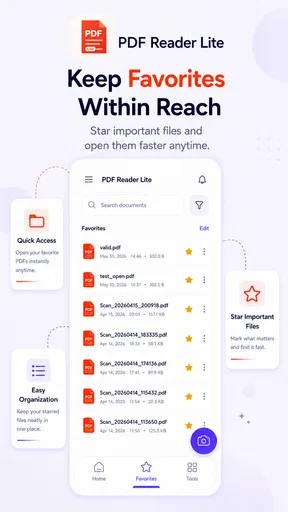
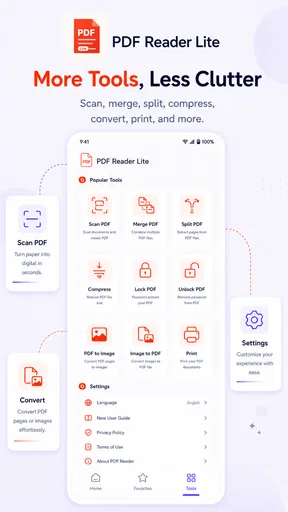
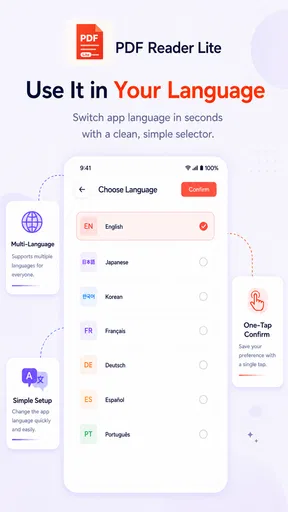
 Analysis by AppCompare
Reading a PDF on a phone is easy when the file is short, but the experience changes quickly when you need to mark a document, remove pages, combine files, or sketch a quick note. PDF Reader Lite - Fast Viewer is built around that more practical side of document handling. I tested it as a lightweight tools app from Omareyah Team, and my impression is that it aims to keep everyday PDF work in one uncomplicated place rather than turning a phone into a full desktop publishing suite.
The app is free, rated for Everyone, and works on Android 8.0 or later. Its current version is 1.0.1, so I see it as a relatively young product whose basic direction is already clear but whose longer-term development still matters. It has reached over 100K installs and holds a 4.0 average from roughly 267 ratings, which suggests that people are finding it useful while still leaving room for refinement.
How the current PDF experience feels
My first reaction was that the app makes sense for people who want a direct route from opening a file to doing something with it. A conventional phone viewer is usually fine for reading, but it becomes inconvenient when a document needs a handwritten mark, a visual pointer, or a quick structural edit. Here, viewing, annotation, drawing, splitting, and merging are treated as parts of the same workflow.
That combination is the most important reason to consider it. I would not install it merely to open one occasional PDF, because the default viewer already handles that job on many phones. I would consider it when PDFs arrive regularly through email, messaging apps, cloud folders, or downloads and I want a small set of practical tools without moving between several applications.
The “Lite” identity also sets a useful expectation. I approach PDF Reader Lite - Fast Viewer as a focused utility, not as a replacement for a desktop editor. That distinction matters. A lightweight reader can be quicker to understand and less distracting, while a more advanced alternative may be preferable for complex forms, professional publishing, extensive text editing, or document collaboration.
Reading is only the starting point
For ordinary reading, the value comes from having a familiar document available alongside tools that can be used when needed. I especially like this approach for study notes, work instructions, receipts, application forms, and reference documents that are mostly read but occasionally need a visual comment.
Drawing directly on a page can be more useful than it sounds. A circle around a line, an arrow toward a figure, or a short handwritten reminder can communicate intent faster than a separate note. This is particularly handy when I am reviewing a document on a small screen and do not want to create a second file just to explain what needs attention.
Worth Reading Before You Choose

EA SPORTS FC Mobile 26 Is a Bigger Football Game, but It Takes Time

Flipboard Shows What News Apps Must Do Beyond the Feed

Switching to Android Auto Means Rethinking Your Driving Routine

Google Calendar Makes a Crowded Week Easier to Manage

Ludo King Makes the Most of the Minutes Between Plans

Baby Panda World Brings Quick Play to Modern Phones, but Its Game Library Feels Busy
Annotations also change the way I would use the app with other people. Instead of sending a vague message such as “check the second part,” I can mark the relevant area and return the edited document. That does not make the app a collaboration platform, but it does make a simple review exchange clearer.
Splitting and merging for real phone workflows
Page management is where the app becomes more useful than a basic reader. Splitting a long document can help when I only need to send a few pages, while merging can turn separate scans or downloaded sections into one file that is easier to store and share. These are small operations, but they solve problems that often lead people to search for a separate PDF utility.
A practical example would be preparing paperwork before sending it. I might receive a multi-page guide, keep only the pages relevant to a request, then combine them with a scanned supporting page. Doing that on the phone is convenient because the work can happen immediately, rather than waiting until I reach a computer.
There is also a useful organizational trade-off here. Splitting a file reduces clutter when I need a single section, but it can make document tracking harder if I create too many fragments. I would use clear filenames and keep the original untouched until I have checked the result. That simple habit is more important on a mobile device, where it is easy to lose track of several similarly named files.
What the early version tells me
The version number gives the product an early-stage character. Version 1.0.1 indicates that the app is still close to its initial release phase, rather than being a mature document platform with a long-established feature history. I see that as both an opportunity and a caution: the foundation may become more capable, but I would not assume that every advanced PDF task is already covered.
The release date is June 5, 2026, and that timing reinforces the same point. The current build should be judged by what it already does today, not by features that might appear later. I appreciate apps that grow steadily, but I make a clear distinction between a useful present tool and a promise about future development.
For someone choosing it now, the sensible approach is to test it with a copy of an important document first. Open a file, try a small annotation, perform the page operation you actually need, and inspect the saved result before deleting or replacing the original. This is not a criticism unique to this app; it is good practice whenever a mobile utility changes files.
Who benefits most from this combination of tools
I think the strongest audience is made up of students, independent workers, families handling paperwork, and anyone who reads PDFs often but does not need a full office suite. Students can mark passages or draw attention to diagrams. A self-employed user can separate a relevant page from a longer document. A family member can combine photographed paperwork with an existing form before sending it onward.
It is also a good fit for people who prefer a smaller learning curve. A large document suite may offer more power, but that power can come with crowded menus and features that are irrelevant to a quick task. The appeal here is the possibility of opening a file and getting to the useful action without first configuring a broader workspace.
On the other hand, I would skip it if my work depends on sophisticated text reflow, advanced form automation, signature workflows, shared commenting, or detailed document security controls. Those needs usually belong to a more specialized PDF editor or a desktop application. A reader with drawing and page tools can be practical without being a complete professional publishing environment.
A realistic everyday scenario
Imagine receiving a PDF containing several pages of instructions for a repair or appointment. I would open it while away from my computer, draw a circle around the relevant step, and add a short visual reminder. If I only needed to send the selected pages to someone else, I could split the document rather than forwarding the entire file. If an additional page arrived separately, merging the files would create one cleaner package.
That scenario shows the app’s real strength: it reduces the number of transitions between reading and acting. I do not have to treat viewing, marking, and basic page organization as completely separate jobs. The benefit is not dramatic automation; it is the removal of several small annoyances from a normal phone-based document task.
Tips that make the app more practical
My first tip is to separate temporary marks from final annotations. If I am only using a drawing to understand a page, I would avoid treating that copy as the official document. Once the notes are confirmed, I would save a clearly named version. This prevents an informal sketch from being mistaken for a finished file.
My second tip is to use splitting as a sharing decision, not only as a storage decision. Before separating pages, I would identify exactly what the recipient needs and keep the order intact. A smaller document is easier to send and review, but removing context can make the result confusing.
My third tip is to merge only after checking the page sequence. Combining files is useful for creating a single packet, but the order affects how understandable that packet will be. I would prepare the files in a deliberate sequence and then read through the first and last pages of the finished document before sharing it.
A fourth useful habit is to keep the original source available until the edited copy has been opened successfully. This is especially sensible when working with forms, travel documents, or records that would be difficult to recreate. The app’s convenience should support careful file handling, not encourage rushed replacement of the source.
How it compares with usual alternatives
Compared with a phone’s built-in PDF viewer, this app offers a broader reason to exist because it goes beyond passive reading. The difference is most noticeable when I need to annotate, draw, split, or merge. If I only scroll through occasional documents, the built-in option may remain simpler and perfectly adequate.
Compared with a full office or document suite, PDF Reader Lite feels more focused. That can be an advantage when I want a quick PDF-specific task, especially on an older Android device that meets the minimum system requirement. The trade-off is that a broader suite may be better for creating documents, editing text extensively, managing cloud-based work, or handling several file formats together.
Compared with a dedicated professional PDF editor, the likely appeal is ease and a lighter scope rather than depth. I would choose a specialist editor when a document is central to my job or requires complex controls. I would choose this app when the task is concrete and limited: read the file, mark it, remove unnecessary pages, or combine a few documents.
Where I still feel friction
The app’s feature set sounds broad enough to cover common needs, but breadth alone does not guarantee a smooth workflow. On a phone, page selection, drawing precision, file naming, and saving behavior all have an outsized effect on usability. A tool can technically support an operation and still feel awkward if the controls are difficult to reach or if the result is not obvious.
I also see the early version as a reason to keep expectations measured. The current release may be perfectly suitable for basic document work, yet users with unusual PDFs or demanding professional requirements should test their own files before relying on it. A simple brochure, scanned form, and highly structured business document can behave very differently in a mobile reader.
Another limitation is the natural compromise between simplicity and control. Fewer layers make a tool approachable, but advanced users may want more precise annotation options, richer organization, or deeper editing controls. I would rather see this app remain clear and dependable than become overloaded with features that make quick tasks slower.
What I would watch in future updates
Because the product is at version 1.0.1, future updates will be important in showing whether the developer can turn a useful first release into a dependable long-term tool. I would watch for improvements that make the existing workflows more predictable: clearer file handling, smoother page selection, reliable saving, and better feedback after an operation.
I would also pay attention to how the app handles the boundary between annotation and editing. Those are different user expectations. Someone drawing on a page may want a visible mark, while someone editing a document may expect changes to behave like native content. Keeping that distinction understandable would help users choose the right action and avoid surprises.
For now, I would not choose the app because of what it might become. I would choose it because its present combination of reading and basic PDF manipulation fits a specific everyday need. The fact that it is free makes trying it straightforward, but the best test is still a personal one: use a duplicate of the documents you handle most often and see whether the workflow feels natural.
My recommendation
After using it as a practical mobile PDF tool, I see PDF Reader Lite - Fast Viewer as a sensible choice for readers who want more than opening files but less than a heavyweight document suite. Its strongest idea is the connection between viewing, marking, drawing, splitting, and merging. Those actions cover a surprisingly useful range of small tasks.
I would recommend it to someone who regularly receives PDFs and wants to handle them immediately on an Android phone. I would be more cautious for professional document production, complex forms, or work that demands advanced editing and collaboration. In those cases, a specialized alternative is likely the better investment.
Overall, the app earns my recommendation as a focused, free utility with a clear role. Its current release feels like a starting point rather than a finished document ecosystem, so I would keep an eye on how Omareyah Team develops it. Used for the jobs it is designed to simplify, it can turn several annoying PDF chores into one manageable phone workflow.
Pros
- Opens PDFs quickly
- even on older Android and iOS devices.
- Simple interface makes basic reading easy for all users.
- Supports smooth page navigation with minimal loading delays.
- Lightweight installation uses little storage space.
- Useful for checking documents without unnecessary editing tools.
Cons
- Limited annotation and editing options compared with full PDF suites.
- May lack advanced cloud integration for accessing online files.
- Free version may include advertisements or upgrade prompts.
- Large
- image-heavy PDFs can still cause slower performance.
- Some features may require separate apps or external file managers.
FAQs for PDF Reader Lite - Fast Viewer
What is PDF Reader Lite - Fast Viewer used for?
PDF Reader Lite - Fast Viewer is designed for opening and reading PDF documents on a mobile device. During testing, it was useful for viewing manuals, forms, ebooks, receipts, and other files without needing a full desktop-style office suite. Its focus is quick access and straightforward reading rather than advanced document editing or professional PDF management features.
Can PDF Reader Lite - Fast Viewer open all PDF files?
The app should handle standard PDF documents, including text-based files and many documents containing images or basic formatting. However, compatibility may vary with password-protected, damaged, unusually large, or highly interactive PDFs. Files that depend on special fonts, embedded multimedia, complex forms, or advanced security settings may not display perfectly, so important documents should always be checked after opening.
Does PDF Reader Lite - Fast Viewer require an internet connection?
For ordinary reading, a constant internet connection is generally not expected once a PDF is already stored on the device. This makes the app convenient for accessing downloaded documents while traveling or in areas with limited connectivity. Internet access may still be needed for downloading files from online locations, displaying third-party content, checking updates, or using features that depend on external services.
Can users search, zoom, and navigate through documents?
The main reading tools are intended to make document browsing more comfortable on a phone or tablet. Users can typically move between pages, zoom in on small text, and use basic navigation controls. Search availability and performance can depend on the app version and the structure of the PDF, especially when the document contains scanned pages rather than selectable text.
Is PDF Reader Lite - Fast Viewer safe and suitable for private documents?
As with any document viewer, users should review the permissions, privacy policy, and store listing before opening sensitive files. Avoid importing confidential documents if the app requests access that seems unrelated to PDF viewing, and keep the application updated through the official Android or iOS store. For highly private financial, legal, or work documents, consider whether the app’s storage and sharing behavior meet your security requirements.


